GPT.AZ · PRACTICAL GUIDE
Video Studio user guide: create a video step by step on mobile
GPT.AZ · VIDEO
60-second video guide
Watch the video or continue with the written steps below.
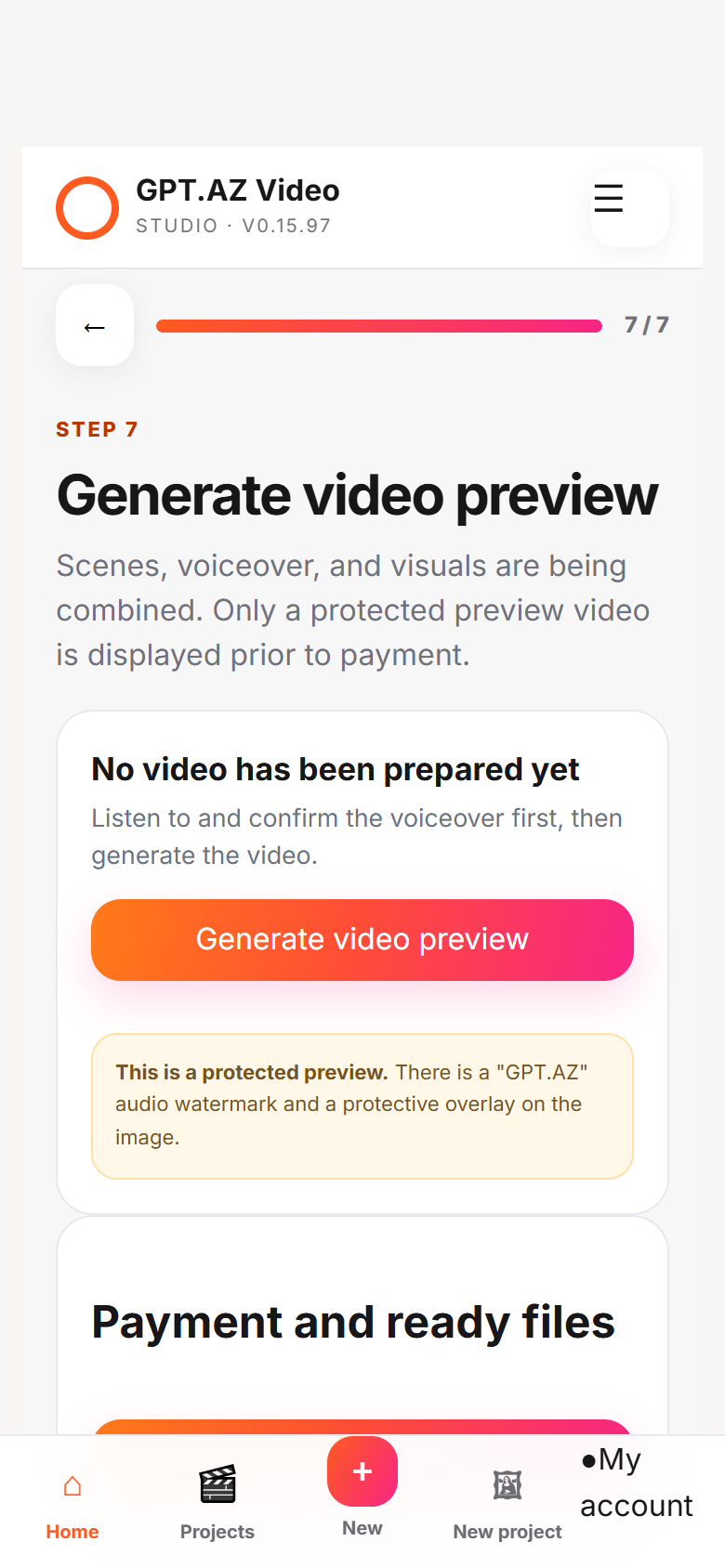
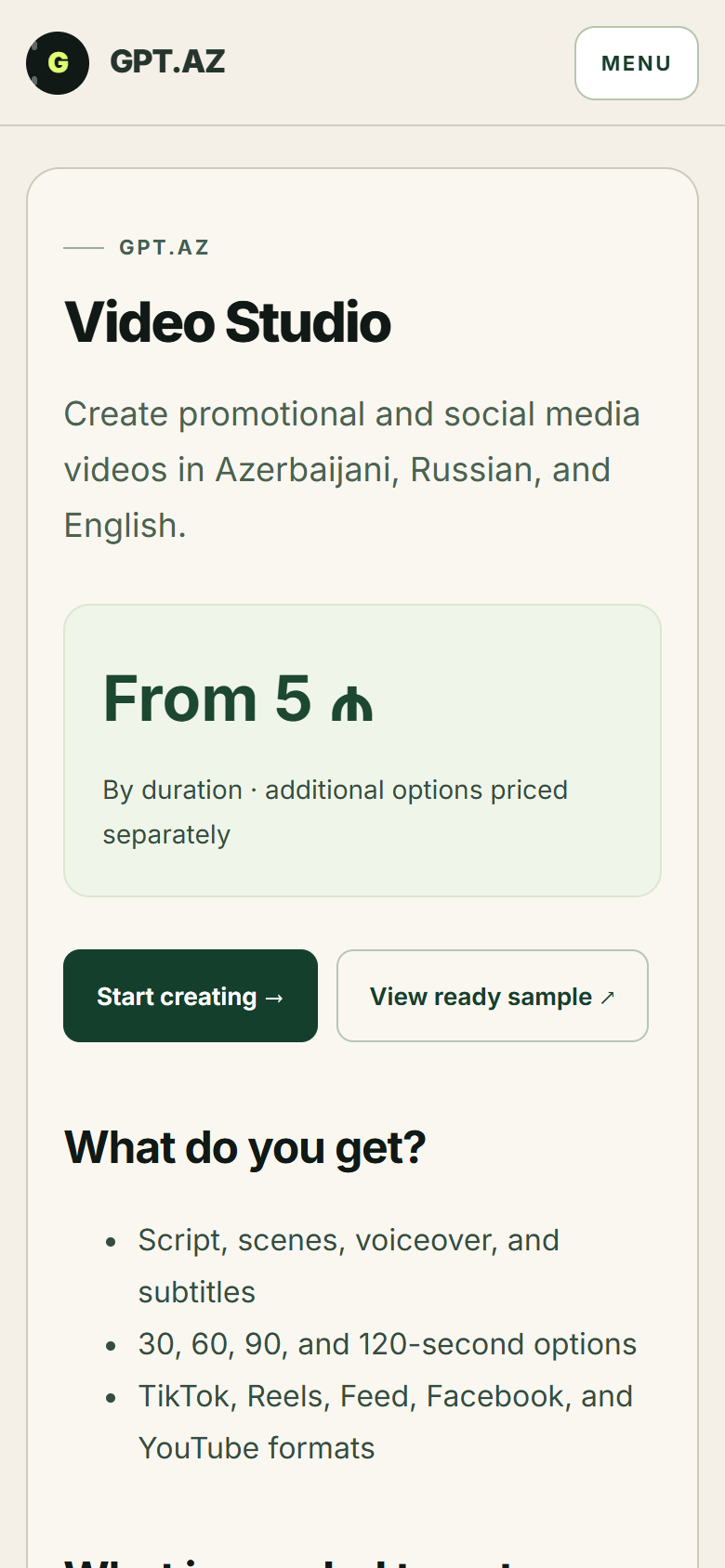
This guide covers every essential step for creating your first GPT.AZ Video Studio project on a phone. The screenshots come from the real mobile interface; small interface details may change.
Real mobile workflow
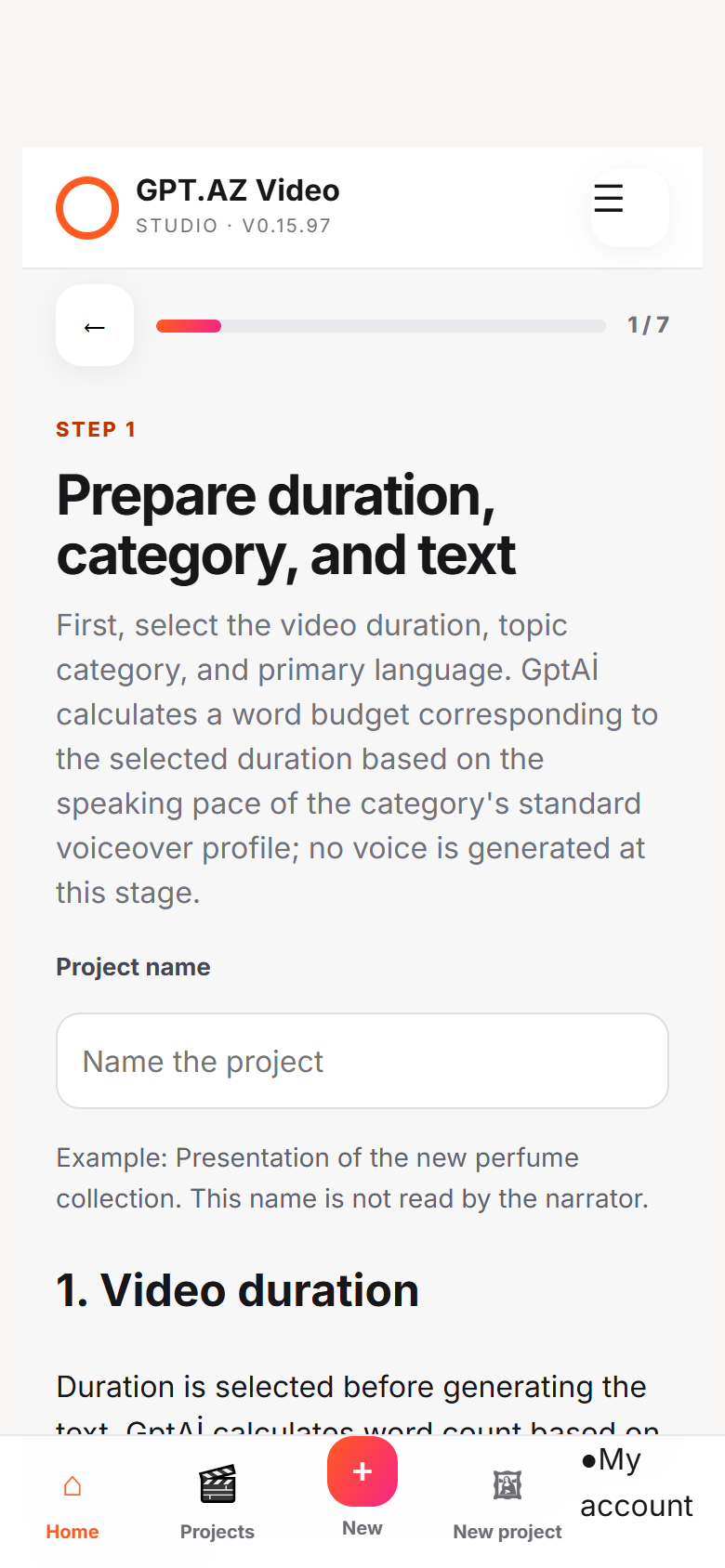
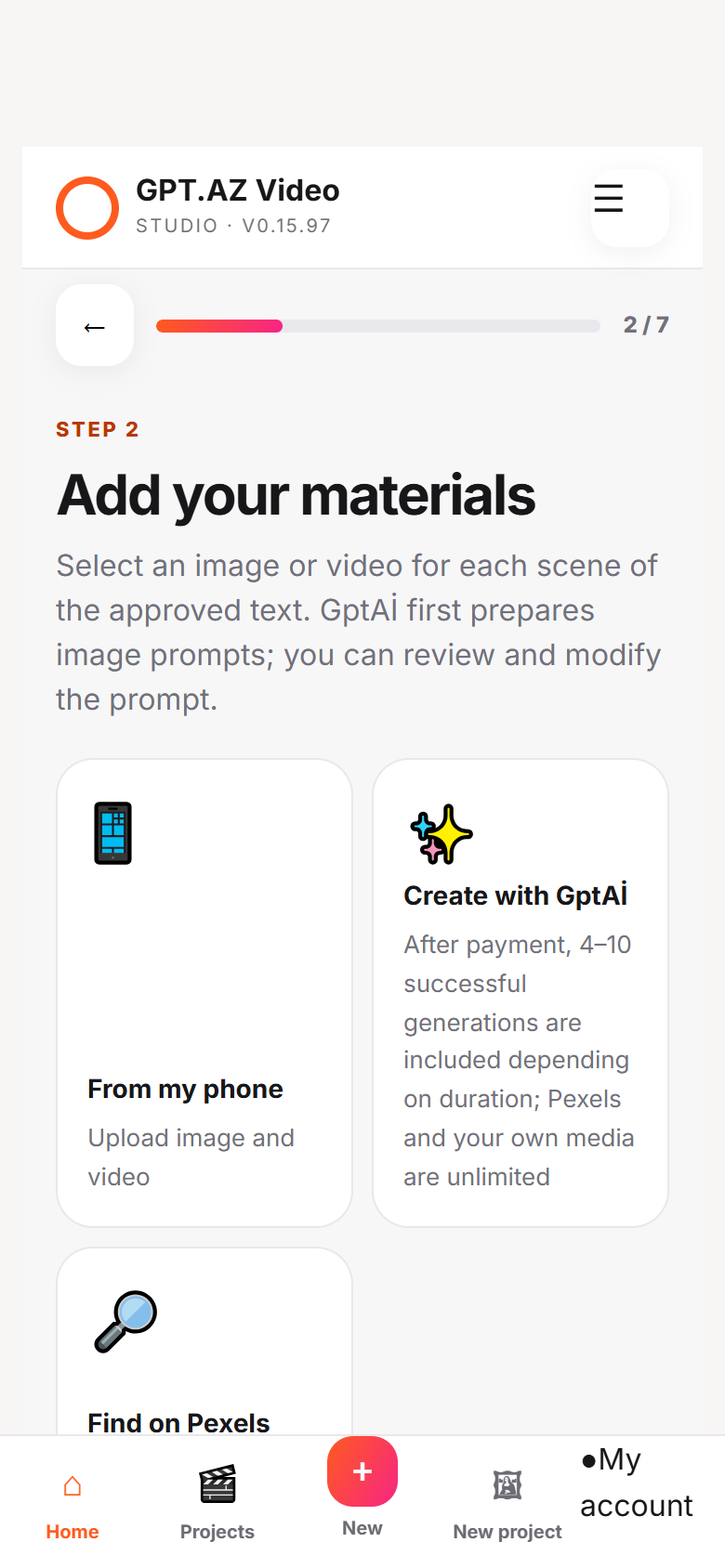
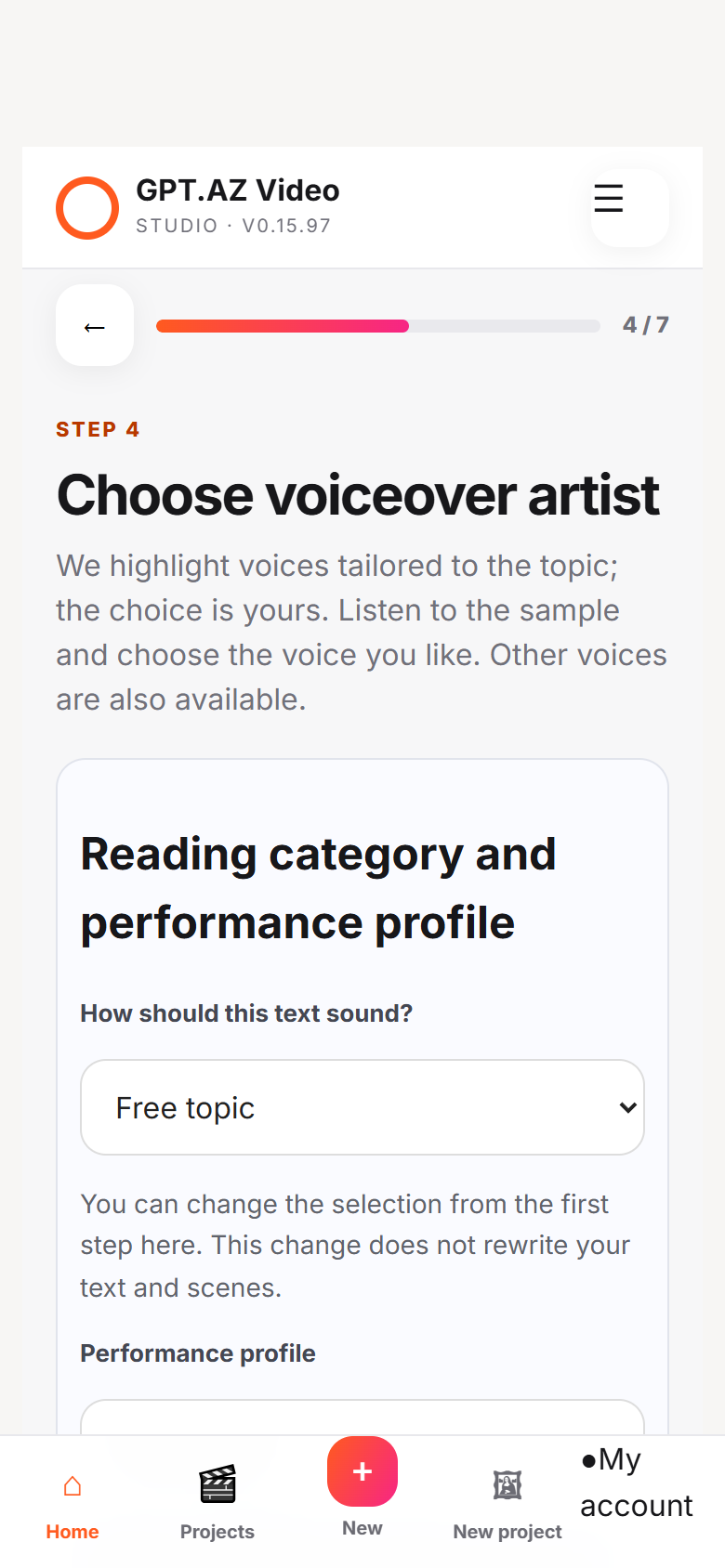
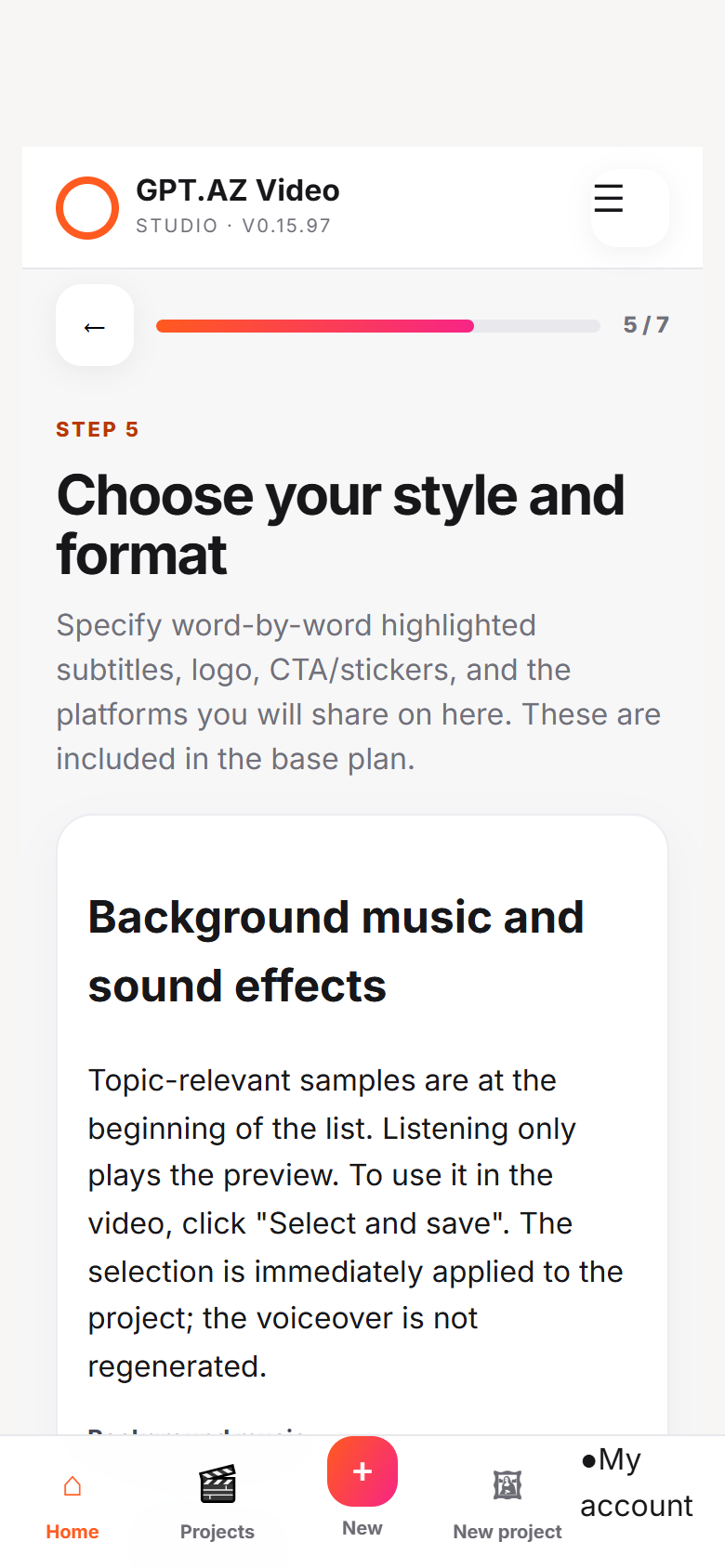
1. Choose a mode
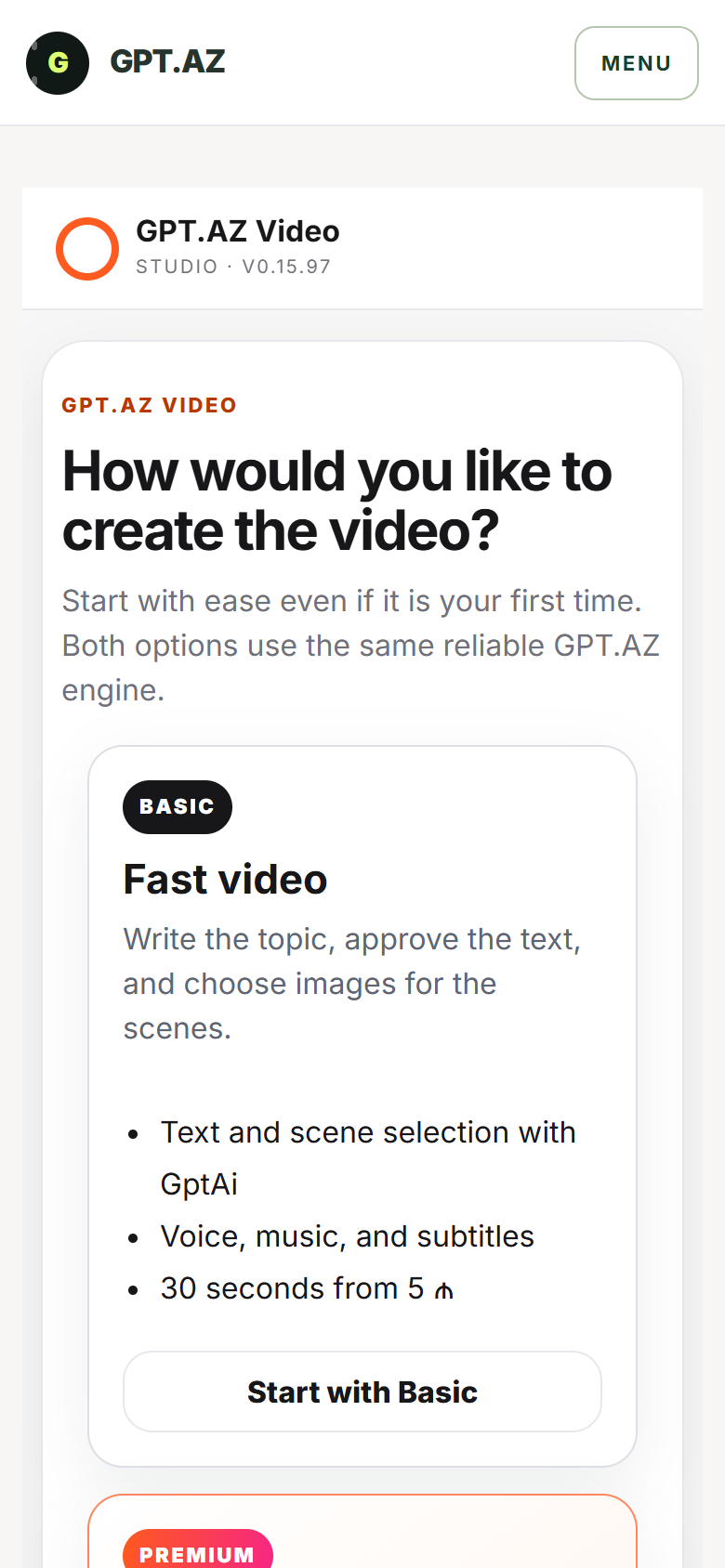
Open Video Studio and choose the mode that fits your needs. Basic is for a quick result based on a topic, approved copy and selected scenes. Premium is for projects that need a more flexible visual direction and extra preparation.
2. Describe the topic precisely
Describe the product or service, target audience, main benefit and desired call to action in a few clear sentences. Verify changing details such as prices, dates, addresses and promotions before publishing.
“Create a 30-second vertical ad for a small restaurant in Baku. Emphasize the family atmosphere and online ordering. End with a ‘View the menu’ call to action.”
3. Review the copy and scenes
- Read the script.Check facts, prices, names and contact details.
- Match the scenes.Make sure each scene's copy and visual communicate the same idea.
- Listen to the voice.Approve pronunciation, pace and proper names before the final render.
4. Choose duration and format
Choose 30, 60, 90 or 120 seconds. Use 9:16 for TikTok and Reels, 4:5 for Instagram Feed, 1:1 for square posts and 16:9 for YouTube. Keep important copy and logos away from the edges.
5. Generate the final video
Recheck duration, format, language and the total in the order summary. Once rendering is complete, watch the full video and then download the MP4. Review voice, music, subtitles and the final call to action separately.
Common problems
The file will not upload
Check the file format and size, use a stable connection, and keep the page open until the upload finishes.
The text or voice is incorrect
Correct names, numbers, and terms; listen to the full preview before creating the final result.
The result is not visible
Refresh My projects. If processing is not finished, wait a few minutes; do not start the same order again.
Still having trouble? Contact support →